The Room Number Manager in the Pro Addon allows you to assign individual room identifiers to your accommodation products and track each room’s availability independently. This prevents double-bookings and enables seamless integration with Online Travel Agencies (OTAs) through per-room iCal export URLs.
What You Can Do
- Assign unique room identifiers (Room 101, Suite A, etc.) to each allotment
- Track each room’s availability independently
- Prevent double-bookings with database-level safeguards
- Generate unique iCal URLs for OTA calendar syncing
- Let guests select their preferred room at booking time
- View room availability in a visual calendar interface


Getting Started
Step 1: Set Your Allotment
In the Product editor screen, set your Allotment (the total number of rooms)
- Example: If you have 5 identical rooms, set Allotment to
5 - Save the product
Step 2: Manage the Availability & Prices
- Open “Products > Availability & Prices” and select which room you want to manage
- Click the “Sync Calendar” button
- You’ll see input fields matching your allotment count
- Enter the room identifier for each field:
Room 101Room 102Room 103
etc.
Click “Save room names”
Naming Conventions Best Practices
Do:
✅ Use clear, consistent naming: “Room 101”, “Room 102”
✅ Include room type when relevant: “Deluxe Suite 201”
✅ Use recognizable identifiers for guests
Don’t:
❌ Use special characters that might break calendar syncing
❌ Change room numbers frequently (causes confusion)
❌ Use overly long names (truncation on mobile)
Calendar Sync Tab
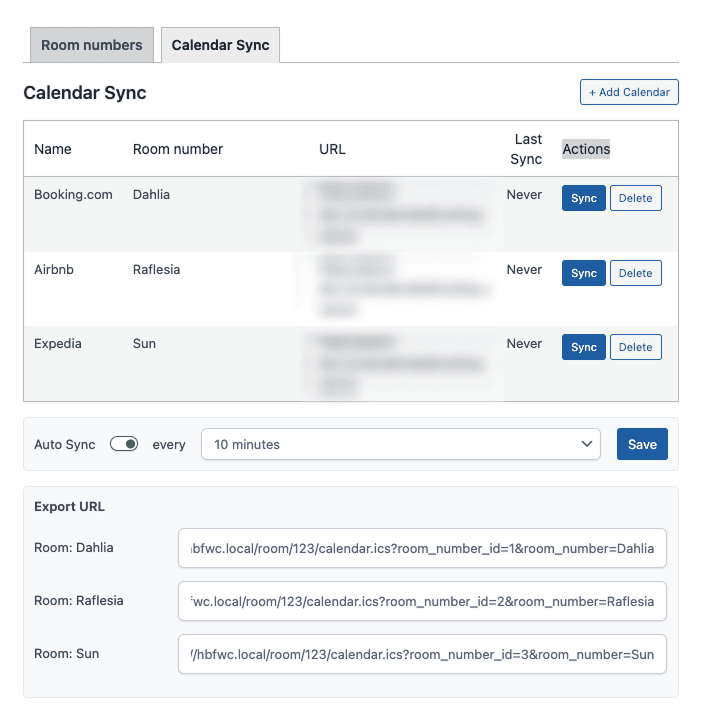
The Calendar Sync tab lets you connect each room’s availability to external OTA platforms.
Setting Up Calendar Syncing
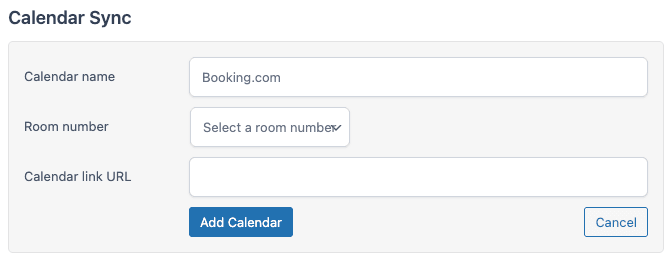
- Click the “Calendar Sync” tab.
- Click “+ Add Calendar” button.
- Enter the calendar name (we recommend using the OTA name).
- Select which room number will be synced with this calendar.
- Enter the calendar URL you got from the OTA.
- Click the “Add Calendar” button to save it.
Per-Room iCal URLs
Each room gets a unique iCal export URL – below are the example of the iCal export URL:
https://yoursite.com/room/14/calendar.ics?room_number_id=1&room_name=Dahlia
https://yoursite.com/room/14/calendar.ics?room_number_id=2&room_name=Raflesia
https://yoursite.com/room/14/calendar.ics?room_number_id=3&room_name=Sun
How to use these URLs:
- Copy the URL for the specific room.
- Go to your OTA platform (Airbnb, Booking.com, Expedia, etc.)
- Paste the URL into their calendar sync settings.
- The OTA will now pull real-time availability for that specific room.
Auto-Sync Feature

- Toggle the “Auto Sync” switch to enable automatic syncing
- When enabled, the OTA calendar updates automatically when room availability changes
- Toggle off to manually manage syncing
Manual Sync
- Click the “Sync” button next to any calendar entry to force an immediate sync
- Useful when you’ve made changes and want OTAs updated immediately
Last Sync Tracking
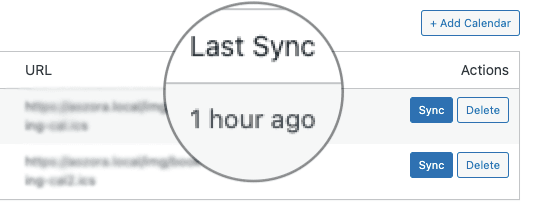
- The “Last Sync” column shows when each room was last synced
- Helps you verify that your OTA integrations are working